
Overview
This document is a companion to the LTS HubSpot 101 training video from HIVE Strategy. It covers the foundational knowledge every campus staff member needs to use HubSpot effectively.
|
BEFORE YOU BEGIN Learning a new system takes time — that is completely okay. The more you practice, the more natural it will become.
This is an introductory overview, not a deep dive into your exact day-to-day workflow. Role-specific training and detailed workflow documentation will follow this overview. Your DSOs have been trained on the system and can help with basic questions. |
Throughout this training, two fictional characters are used as examples:
- Guardian: Doug Parker
- Student: Debbie Parker
Training Modules at a Glance
|
# |
Module |
|---|---|
|
1 |
Introduction to HubSpot |
|
2 |
Navigating HubSpot |
|
3 |
Understanding Guardian, Student, and Ticket Records |
|
4 |
Finding Information |
|
5 |
Ticket Management Fundamentals |
|
6 |
Working in the Help Desk |
|
7 |
Support and Additional Resources |
Module 1: Introduction to HubSpot
What Is HubSpot?
HubSpot is a Customer Relationship Management (CRM) platform that serves as the single source of truth for all Legacy Traditional Schools campuses. It is being rolled out first to all Arizona campuses, followed by other states in subsequent phases.
HubSpot allows each campus to manage all family interactions — emails, phone calls, in-person visits, and more — in one unified place. Every note, conversation, and detail about a guardian or student is accessible to everyone on the campus team, so no one has to search through old emails or scattered notes.
Why HubSpot?
HubSpot exists to deliver better outcomes for families and to make your daily work easier. Specifically, it:
- Creates one single source of truth for all guardian questions, concerns, and history
- Automatically routes inquiries to the right person based on category
- Tracks follow-ups so nothing falls through the cracks
- Provides concrete documentation when addressing guardian complaints
- Gives your whole campus full context into every family interaction
Who Has Access?
Each individual has access only to records for their own campus. The following roles will have access to HubSpot:
- Secretary
- Registrar
- Admin
- DSO
How to Log In
- You will receive an email invitation to the Legacy Traditional Schools HubSpot portal.
- Click the link in the invitation email.
- Set your password.
- You will land directly in HubSpot, in the Help Desk view.
|
TIP Bookmark the HubSpot URL immediately so you can return to it at any time. You can also log in at any time at hubspot.com after your invite is accepted. |
How HubSpot Is Structured
- Each campus has its own individual team and sub-team for each role
- Each campus has its own ticket pipeline for managing family inquiries
- Separate objects exist for: Families, Guardians, Students, and Tickets
- Each object contains individual records that can be associated together (e.g., a family with multiple guardians, multiple students, and multiple tickets)
Module 2: Navigating HubSpot
The Top Navigation Bar

When you log in, you will land on the Help Desk. At the top of the screen you will find:

Search Bar: Your shortcut to finding anything in HubSpot — guardian records, student records, tickets, settings, and more. Start every search here.
 Question Mark Icon: Contact HubSpot support if something isn't working.
 Gear Icon: Access your personal settings.
 Bell Icon: View your individual notifications.
 Breeze Assistant: HubSpot's AI assistant (similar to ChatGPT or Claude), with access to your campus data in HubSpot. Useful for summarizing records, finding information, and answering questions.
The Left Navigation Panel
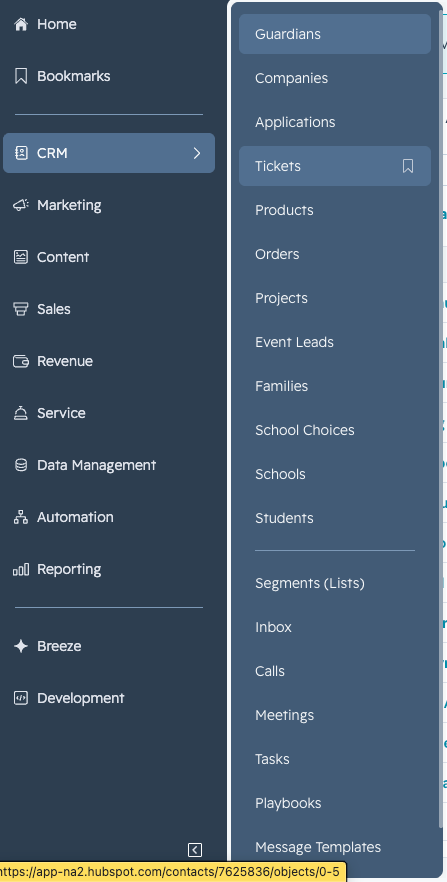
Click the expand icon at the bottom of the left panel to view all tools.

Key areas:
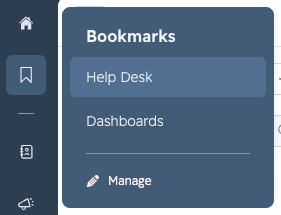
Bookmarks: Personalized to you. Bookmark any tool for quick access.
CRM Tab: Jump directly to Guardians, Students, and Tickets — the three main objects you'll work with.
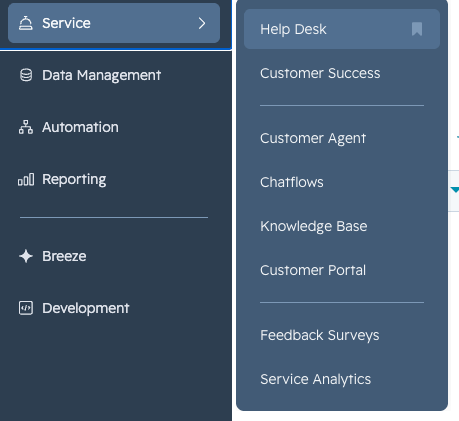
Service Tab (bell icon): Where the Help Desk lives, along with the knowledge base, customer portal, feedback surveys, and service analytics.
Anatomy of the Help Desk
The Help Desk has four main panes:
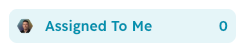
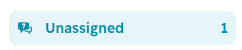
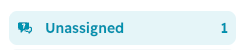
- Left Pane (Folder System): Shows all ticket folders — Assigned to Me, In Progress, Escalated, Unassigned, and campus-level views.
- Secretaries and registrars: Focus on tickets assigned to you.
- Admins and DSOs: Regularly check the Unassigned folder and take ownership of available tickets.
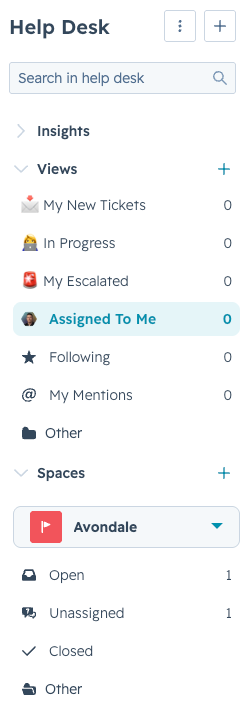
- Middle-Left Pane (Ticket Inbox): All tickets currently in the selected folder. Click any ticket to open it.
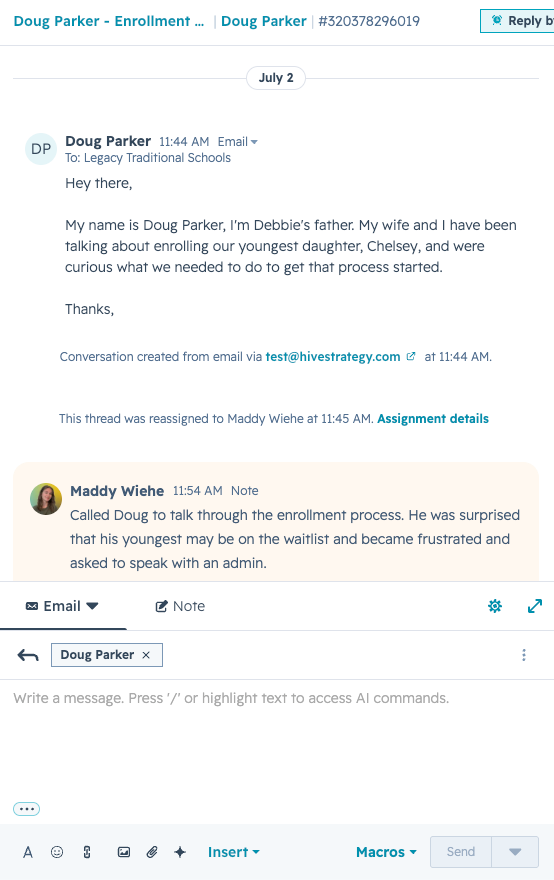
- Middle-Right Pane (Activity Pane): When a ticket is open, this is where you email or call the family, or leave internal notes.
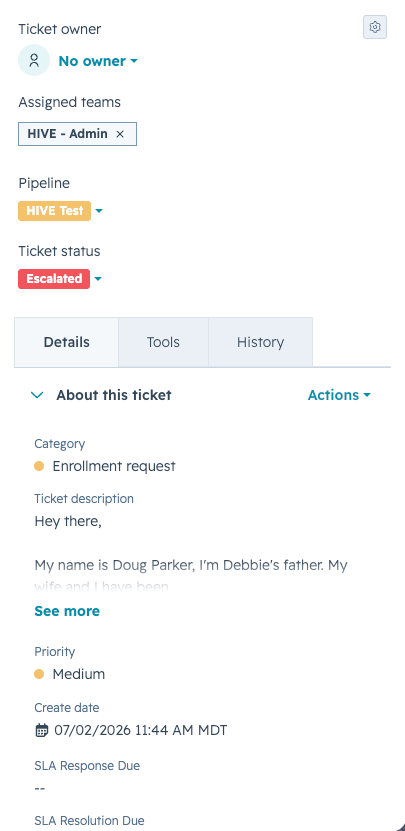
- Right Pane (Ticket Details): Everything known about the selected ticket — owner, campus, pipeline, status, category, description, priority, related guardian, related student, and associated tickets.
Anatomy of a Record
All record types (Guardian, Student, Ticket) share a similar three-column layout:
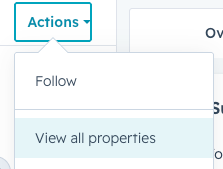
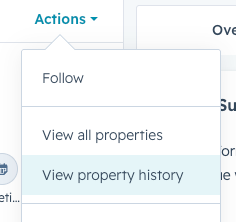
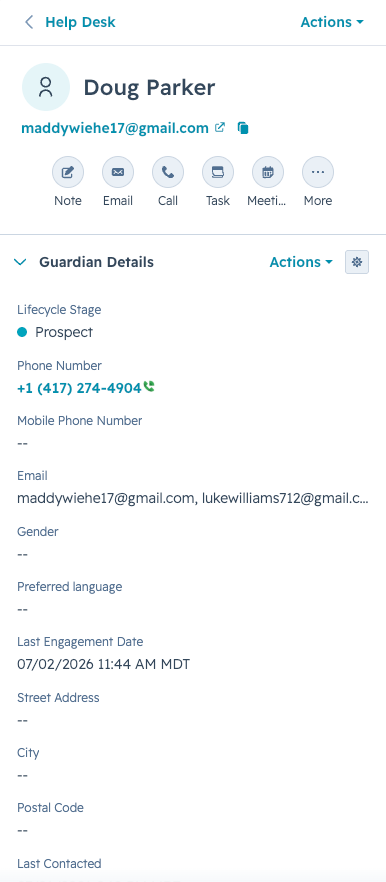 Left Column: Known properties about the record (name, email, phone, campus, etc.). Click “Actions > View All Properties” to see every available field. Use “Hide Blank Properties” to filter to only populated fields.
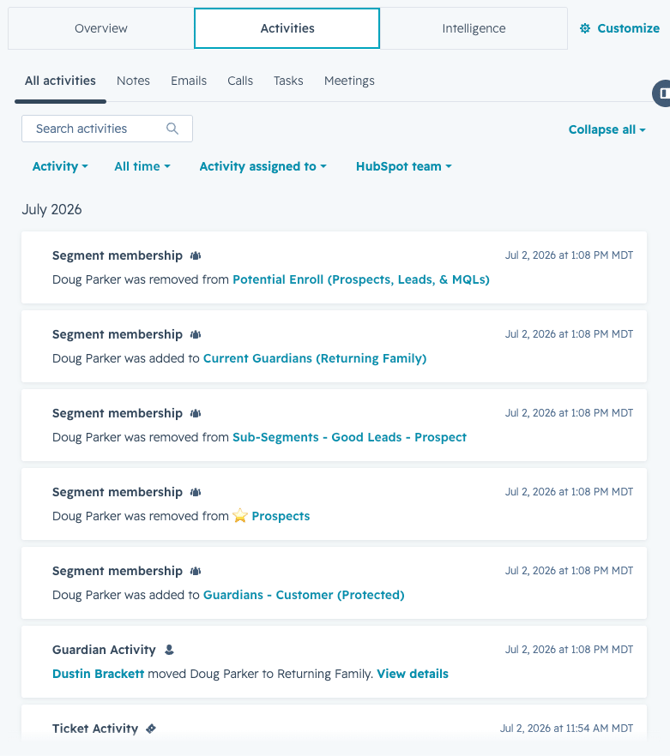
 Middle Column (Activities Pane): All activity associated with this record in chronological order — emails, calls, notes, meetings, tasks. Filter by activity type using the tabs at the top.
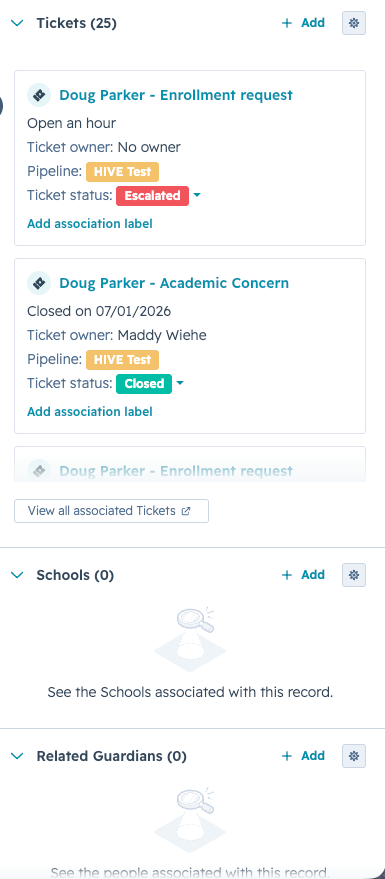 Right Column (Associations): Related records — tickets, schools, guardians, students, applications, siblings.
|
TIP Anything displayed in blue text is a clickable link. Use it to navigate directly to related records. |
Module 3: Understanding Guardian, Student, and Ticket Records
Guardian Records
“Contact record” and “Guardian record” are the same thing. The standard HubSpot object is called Contacts; in the LTS portal it is labeled Guardians. The terms are interchangeable.
Key features of a Guardian record
Left Column
- Surface-level properties: name, email, phone, campus, lifecycle stage
- “View All Properties” to see every known field
- “Property History” to see how any field has changed over time (useful if a phone number was updated)
Middle Column (Activities Pane)
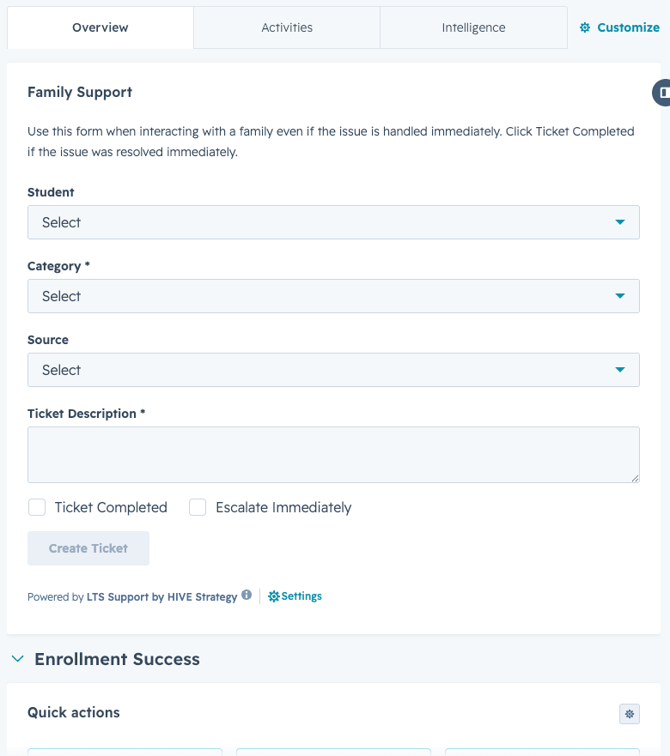
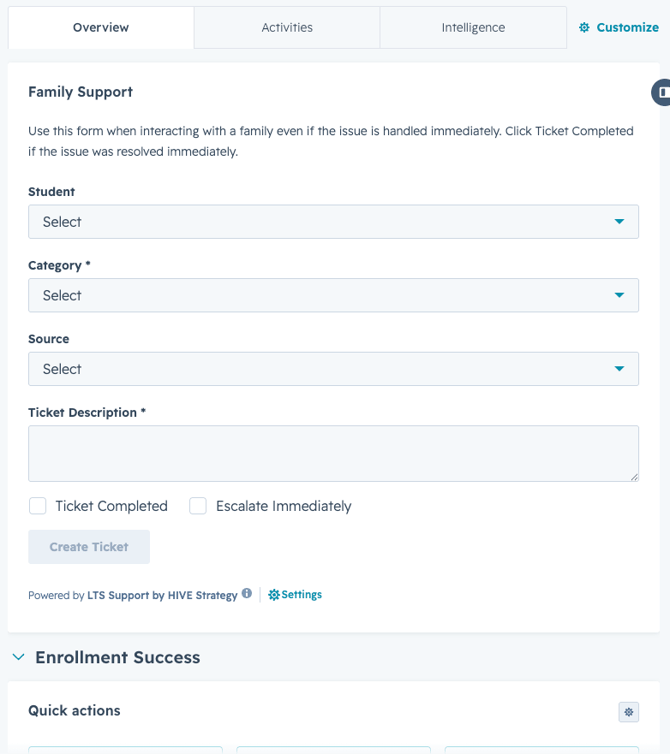
- Overview tab: Includes the Family Support Card for logging phone and in-person interactions
- Activities tab: All historical interactions — emails sent and received, calls, notes, meetings — in chronological order
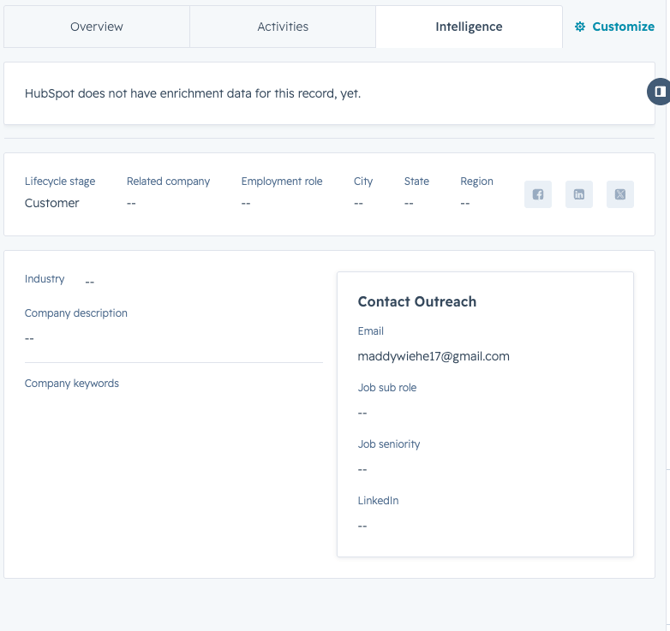
- Intelligence tab: AI-driven insights that grow richer as more interactions are recorded
|
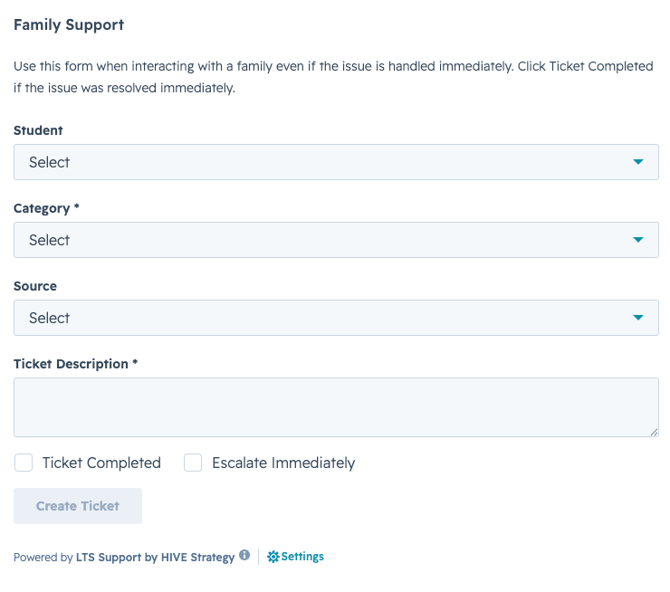
SPECIAL FEATURE — FAMILY SUPPORT CARD Used to log phone calls and in-person interactions. Located in the Overview tab of a Guardian record. (Guardian records only)
|
|
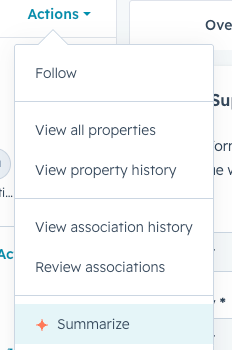
SPECIAL FEATURE — SUMMARIZE (BREEZE ASSISTANT) Click the Summarize button to get an instant AI-generated summary of the entire Guardian record. You can also prompt Breeze with specific questions just like ChatGPT.
|
Right Column (Associations)
- All tickets associated with this guardian (open, closed, new)
- Related schools, other guardians, students, applications
Student Records
Student records share the same layout as Guardian records, with a few differences:
- No Family Support Card (use the guardian's record for phone/in-person intake)
- Activities show all interactions related to the student
- Associations include: related guardians, applications, tickets, siblings, schools, families
Ticket Records
A ticket record tracks a specific request, inquiry, or issue from creation to closure.
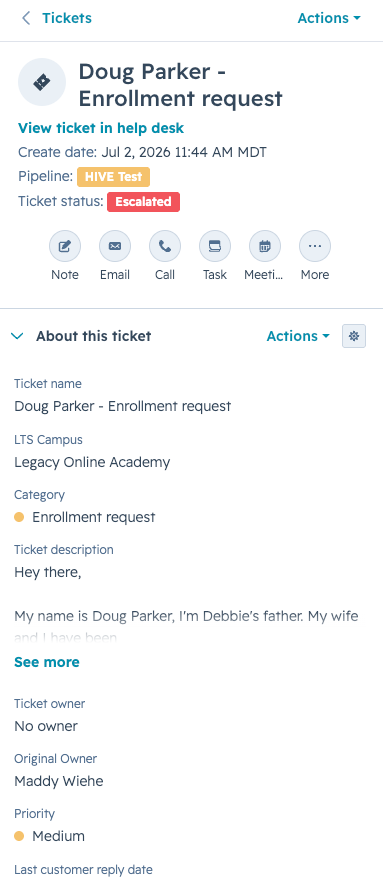
Left Column
- Ticket name, creation date, pipeline, and status
- Activity buttons (note: email/call goes to the guardian, not the ticket itself)
- Scroll down for priority and other key ticket properties
Middle Column
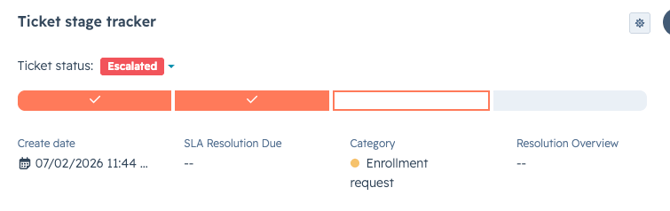
- Ticket Stage Tracker Card: Shows creation date, SLA resolution deadline, and stage progression
Right Column
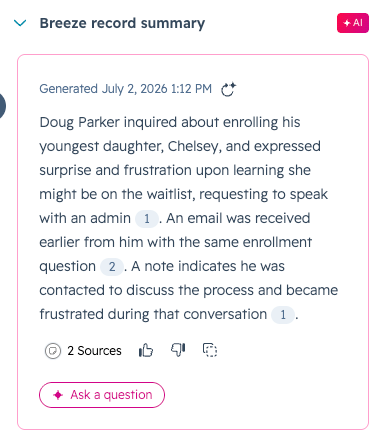
- Breeze Assistant record summary for this ticket
- Associations: guardians, students, applications, related records
Module 4: Finding Information
The Search Bar
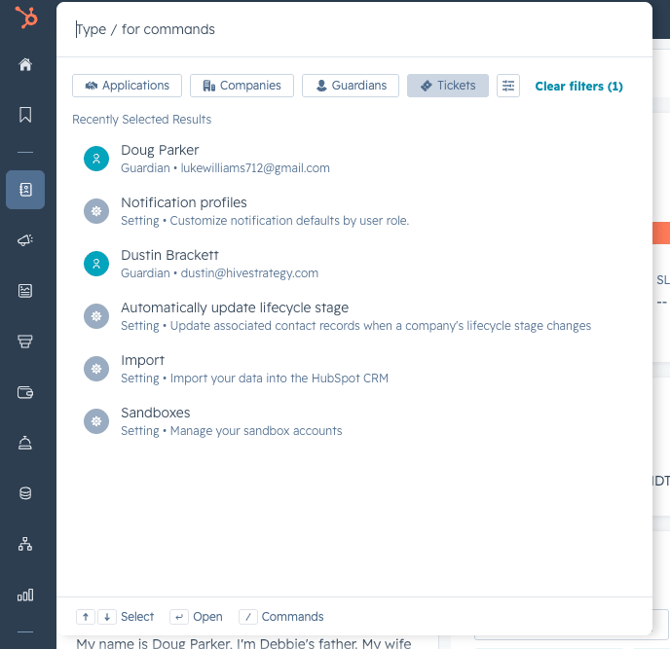
The main search bar (top of every screen) is your most powerful tool. Use it to find anything in HubSpot.
Key search capabilities
- Search by name, email, phone number, or keyword
- Filter by object type (Guardian, Ticket, Note, etc.) by clicking the filter chips next to the search bar
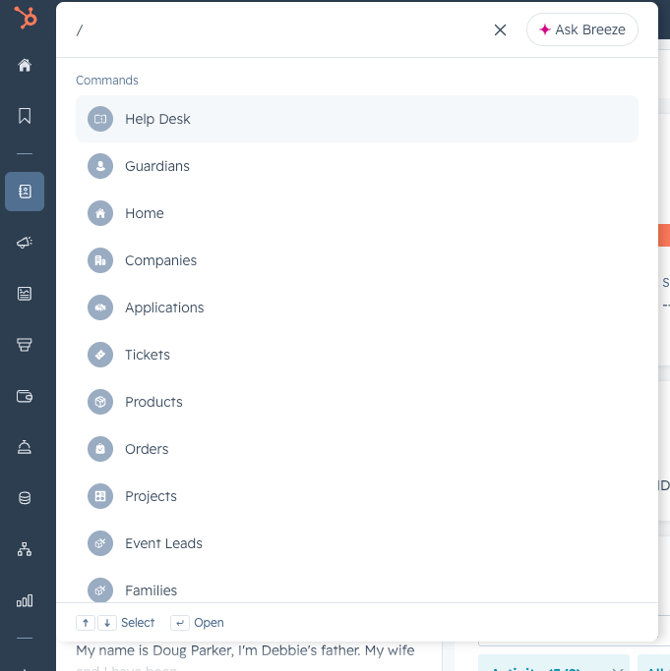
- Use the slash (/) shortcut to navigate anywhere: type “/help desk” to jump to the Help Desk, “/guardians” to jump to Guardians, etc.
- Click “Ask Breeze” to have the AI assistant scour the entire portal for anything related to your search — it will surface matching tickets, guardians, notes, and more

|
NOTE Secondary search bars exist within individual object views (e.g., the Guardians list). These search only within that object and do not support shortcuts or Breeze. |
Logging Activities
Calls
- When a call comes in, a screen pop appears in the bottom-right corner of your screen.
- If the number is already in HubSpot, it automatically associates with that guardian.
- When the call ends, it is automatically logged to the guardian record — no manual step needed.
- Call history is always available on the Guardian record.
Emails
- Any email sent through HubSpot automatically logs to the guardian record and to the associated ticket.
- Always send emails from the ticket, not from the guardian or student record. Activity flows from ticket → guardian, not the other way around.
Internal Notes
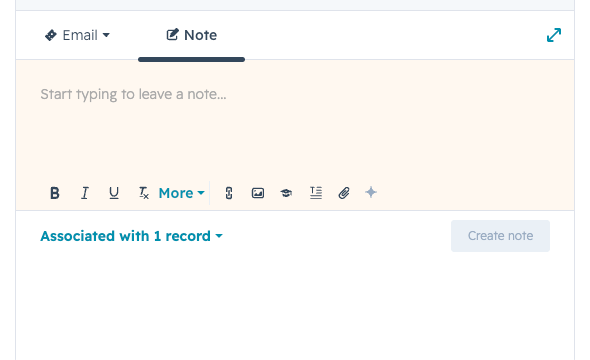
- Notes are internal only — families never see them.
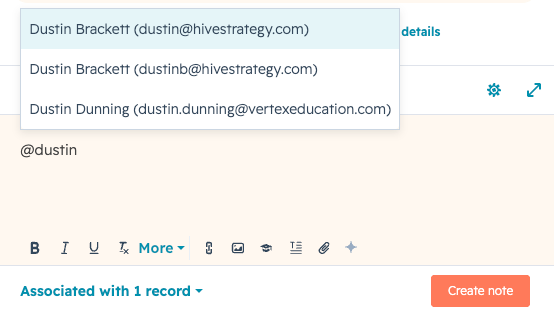
- Use the @ symbol followed by a colleague's name to tag them. They will receive a notification and a link to the note.
- Leave notes liberally to give your team full context on any inquiry.
- Notes can include links, images, and attachments.
|
BEST PRACTICE Do your work from the ticket record. Activity logged on a ticket flows through to the guardian and student records, keeping everything connected. Activity logged directly on a guardian record does not automatically flow to tickets (since a guardian may have many tickets). |
Scenario: Doug Calls About a Teacher Meeting
- If the ticket is already assigned to you, find it in your “Assigned to Me” view.
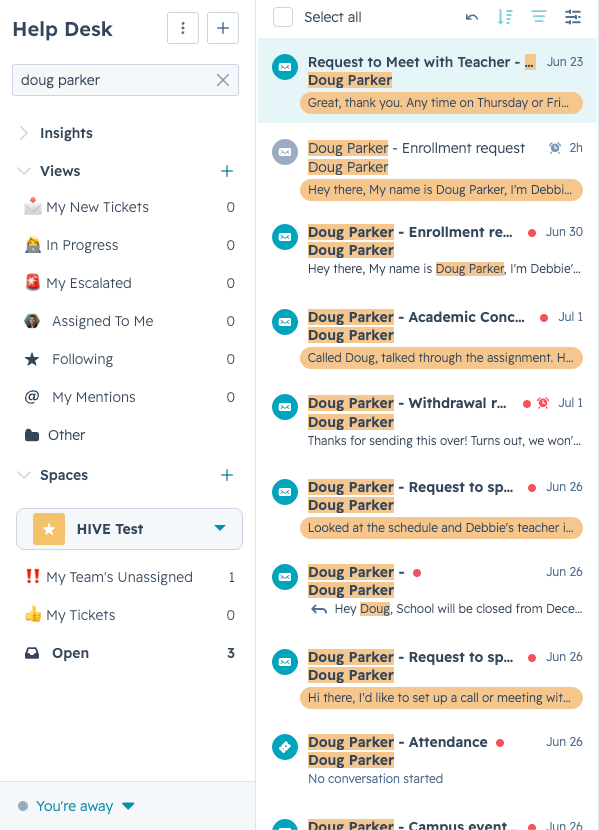
- If not, search the guardian in the search bar and locate the relevant ticket.
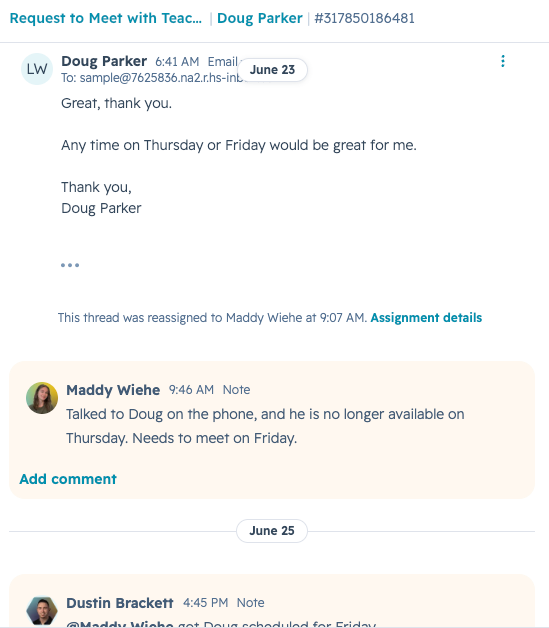
- Review the activity history — past notes and interactions will appear here.
- Handle the inquiry: email, call, or leave a note directly on the ticket.
- Tag colleagues using @ if you need assistance.
Module 5: Ticket Management Fundamentals
What Is a Ticket?
A ticket represents a specific request, inquiry, or issue from a family that requires resolution. Every family interaction — walk-in, phone call, email, or form submission — should generate a ticket. Tickets track the issue from creation to closure, ensuring nothing is missed and providing data on inquiry trends.
How Tickets Are Created
1. Email or Form Submission
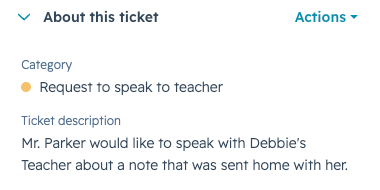
HubSpot automatically picks up all emails sent to your campus's shared inbox. It categorizes the email, creates a ticket, names it (Guardian Name – Category), and assigns it based on category. No manual action required.
2. Phone Call
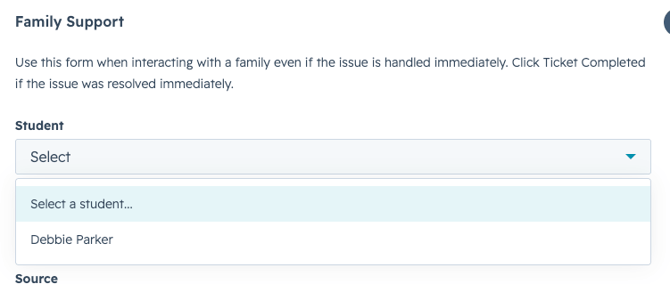
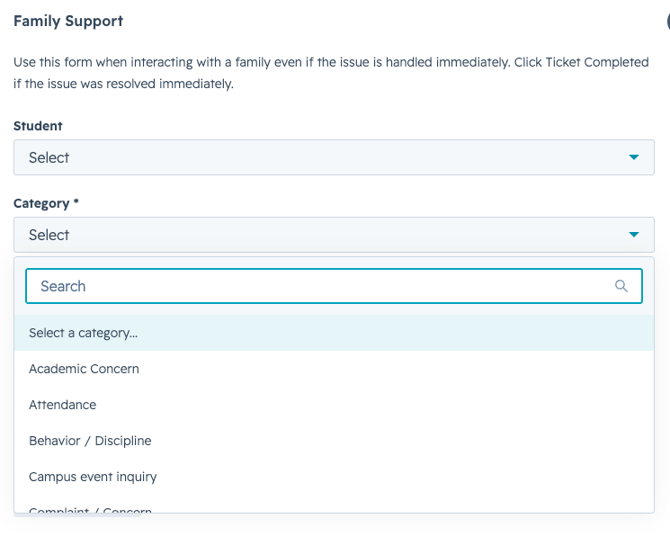
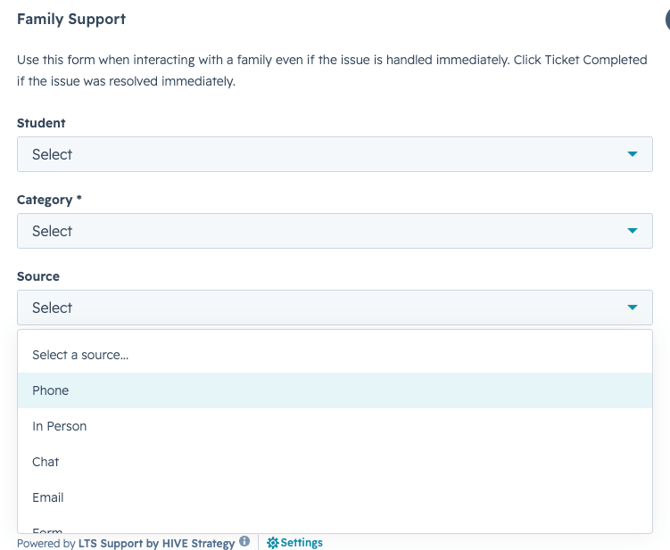
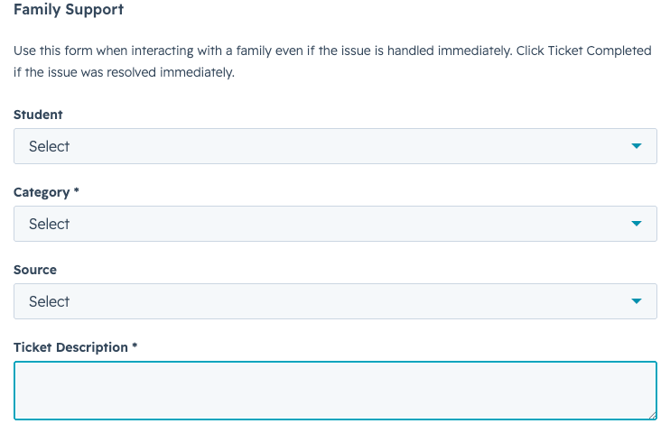
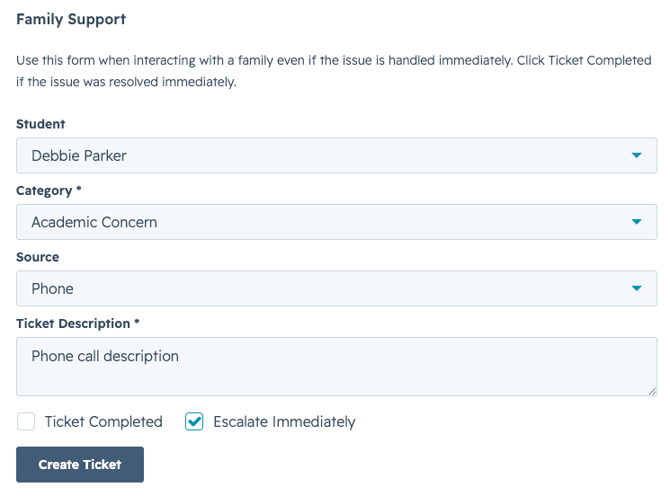
When a call comes in, open the guardian's record and use the Family Support Card:
- Select the student the inquiry is about
- Select the category
- Set the source to “Phone”
- Add a description
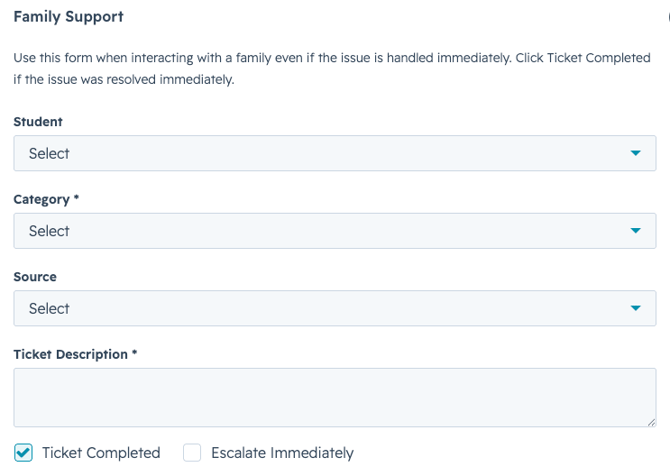
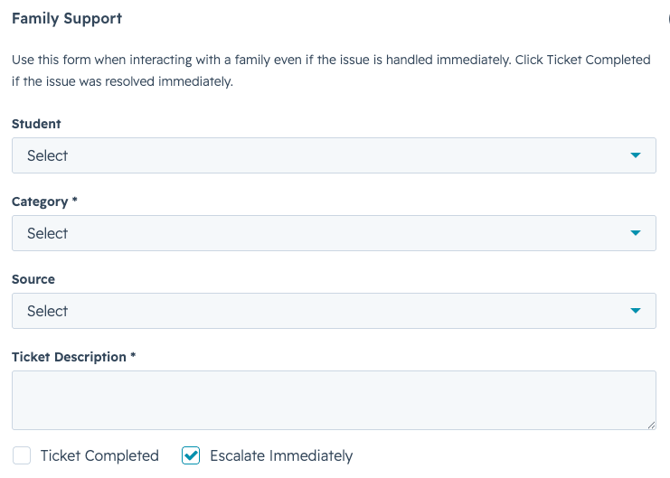
- Check “Ticket Completed” if fully resolved, or “Escalate” if it needs admin/DSO attention
- Click Create Ticket
3. In-Person Visit
Same process as a phone call:
- Search for the guardian in the search bar
- Open their Guardian record
- Use the Family Support Card with source set to “In Person”
- Fill in details and create the ticket
|
NOTE There is a 1-minute delay before a ticket marked “completed” moves to Closed status. This gives HubSpot time to process the record correctly. |
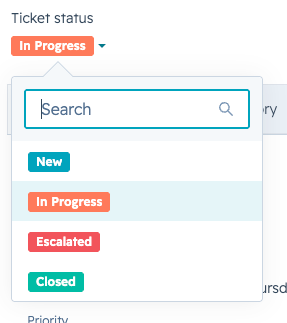
Ticket Statuses
|
Status |
What It Means |
|---|---|
|
|
A ticket has been created and no work has started. No communication has been sent to the family. |
|
|
Work has started. You have reached out to the family or begun working on a resolution. |
|
|
The ticket has been escalated, either automatically (due to time without activity) or manually. |
|
|
The issue has been resolved. A Customer Experience Survey is automatically sent to the guardian when a ticket is closed. |


Ticket Categories and Assignment Logic
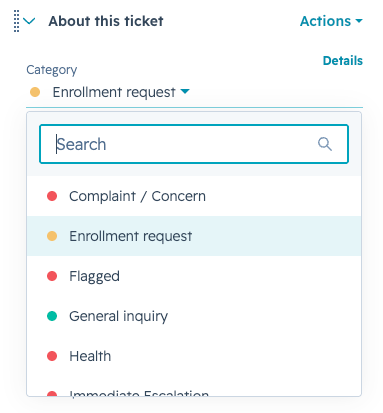
Assignments are determined automatically by ticket category.
|
Assigned To |
Categories |
|---|---|
|
Secretaries (automatic) |
Campus Event Inquiries, General Inquiries, Schedule or Class, Health, Request to Speak to a Teacher |
|
Registrars (automatic) |
Attendance, Enrollment Requests, Withdrawal Requests |
|
Admin / DSO Team |
Academic Concerns, Behavior and Discipline, Request to Speak to an Admin, Complaint or Concerns, Escalations |
|
IMPORTANT If a ticket is categorized incorrectly, do not manually change the ticket owner. Instead, update the Category field. The correct assignment will happen automatically.
|
Ticket Priorities and SLA Expectations
|
Priority |
Categories |
Start Within |
Close Within |
|---|---|---|---|
|
|
General Inquiries, Campus Event Inquiries, Schedule/Class |
12 bus. hrs |
24 bus. hrs |
|
|
Attendance, Enrollment, Health, Request to Speak to a Teacher |
8 bus. hrs |
16 bus. hrs |
|
|
Withdrawal Requests, Academic Concerns, Behavior/Discipline, Complaints, Request to Speak to Admin, Immediate Escalations |
4 bus. hrs |
8 bus. hrs |


|
NOTE These are baseline expectations as the system launches. No one is being evaluated against these targets at this time. They will be refined as more data is gathered. Tickets will automatically escalate if not started or closed within the expected timeframes. |
Admins and DSOs: Picking Up Unassigned Tickets
- Navigate to the Unassigned folder in the Help Desk.
- Review available tickets and identify one to own.

- Click the Ticket Owner field (top right of the ticket) and assign it to yourself.
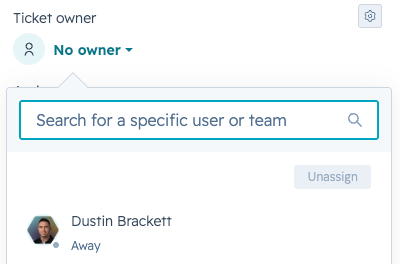
- The ticket will disappear from the Unassigned folder immediately.
Module 6: Working in the Help Desk
The Help Desk is your daily command center. It is the default landing page when you log in to HubSpot.
Help Desk Folder Structure (Left Panel)
Insights
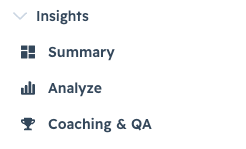
- Summary view of campus ticket data: open/closed counts, time to first reply, time to close, team capacity, hourly trends, SLA progress, ticket channels (email, phone, in-person).
- Analyze tab: deeper reports on ticket creation trends.
- Coaching & QA tab (Admins/DSOs): tracks first response rates, tickets closed, one-touch ticket rates, and Customer Experience Survey scores.
Views
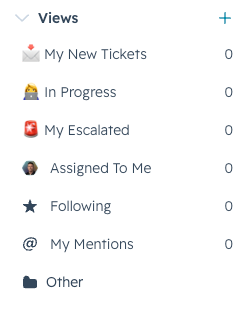
- My New Tickets
- My In Progress Tickets
- My Escalated Tickets
- Assigned to Me
- My Mentions (tickets where you've been tagged)
Spaces (Campus-Level Views)
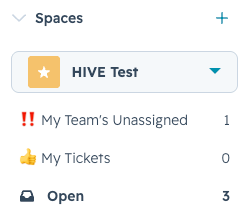
- Open Tickets for your campus
- Unassigned Tickets for your campus (critical for Admins/DSOs)
- Closed Tickets for your campus
Working a Ticket — Step by Step
- Open the ticket from your Assigned to Me view or find it via search.
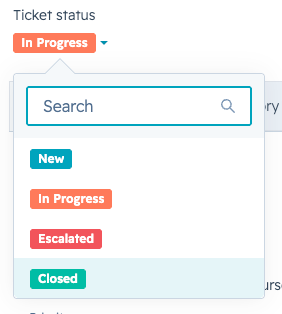
- Change the ticket status to In Progress immediately when you begin working it. This satisfies the “time to first response” SLA.
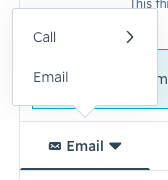
- Communicate with the family using the Email or Call buttons in the activity pane. All communication here is family-facing.
- Leave internal notes using the Notes tab. The family will never see these. Tag colleagues with @ to notify them.
-
- Update ticket fields as needed (category, priority, etc.) directly in the right-side panel.
- When the issue is resolved, change the status to Closed.
Handling Incorrectly Categorized Tickets
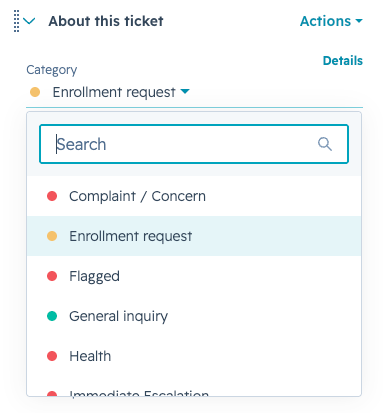
If an email ticket arrives with the wrong category (and therefore the wrong assignment):
- Do not change the ticket owner.
- Change the Category field to the correct category.
- HubSpot will automatically re-route and reassign the ticket.
Closing a Ticket
Change the status dropdown to Closed. This will:
- Remove the ticket from your active queue.
- Automatically trigger a Customer Experience Survey email to the guardian.
Customer Experience Survey
When a ticket is closed, the assigned guardian receives an email from their campus asking: “How easy did we make it to handle your issue?” Rated on a scale of 1–7.
|
Score |
Guardian Sees |
|---|---|
|
1–3 (Difficult) |
Guardian is asked to share more details about what made it hard. |
|
4–5 (Neutral) |
Guardian is invited to share more context. |
|
6–7 (Easy) |
Guardian is invited to share what went well. |
After submission, guardians see a thank-you screen.
Notifications
- Ticket owner is always notified about survey responses.
- Scores of 1–3 or 6–7: Both the ticket owner and the Admin/DSO are notified.
- Scores of 4–5: Only the ticket owner is notified.
Help Desk Layout Options
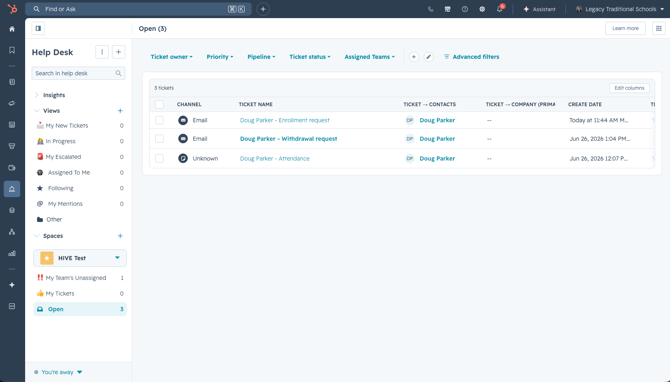
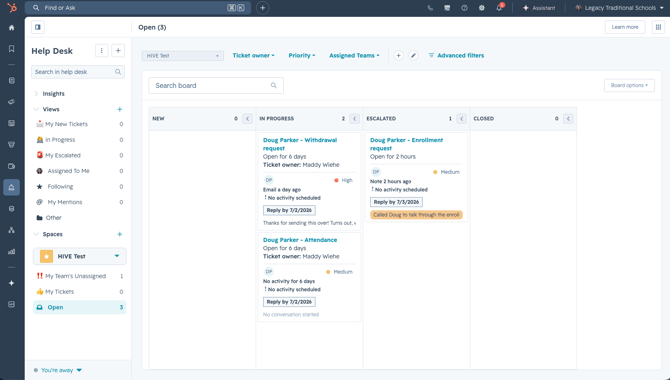
You can customize how the Help Desk is displayed using the layout toggle:
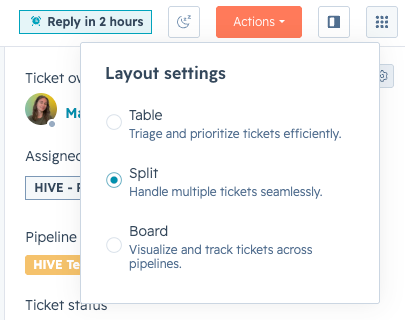
Split View (recommended): Shows inbox + activity + details at once
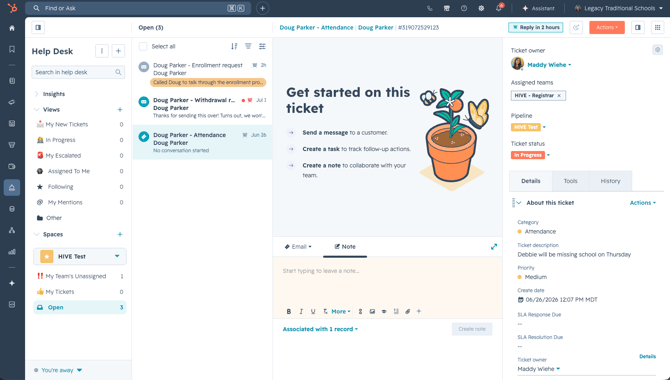
Table View: All tickets in a list format
Board View: Kanban-style view of tickets by status
You can also hide either side panel using the collapse buttons to simplify your view.
Module 7: Support and Additional Resources
What Comes Next
After this HubSpot 101 overview, you will receive:
- A role-specific training video tailored to your position (Secretary/Registrar or Admin)
- Detailed workflow documentation for your day-to-day responsibilities
Who to Contact for Help
Basic questions: Your campus DSO has been trained and can assist with common questions.
HubSpot technical issues: Click the “?” icon in HubSpot to contact HubSpot support directly.
Other questions: Reach out to HIVE Strategy (info@hivestrategy.com)
Quick Reference: Key Tips
- Use the search bar first — it finds anything in HubSpot faster than navigating menus.
- Use the slash (/) shortcut in the search bar to jump to any section of HubSpot instantly.
- Do your work from the ticket record — activity flows from ticket to guardian, not the other way around.
- Use Breeze Assistant — it can summarize records, find contacts, and answer questions in plain language.
- Internal notes are never visible to families — use them freely.
- Blue text is always clickable — use it to navigate between associated records.
- Don't change the ticket owner to re-route — change the Category instead and let automation handle it.
- Admins/DSOs: Check the Unassigned folder regularly and take ownership of tickets.