
You can respond by email using the response box in the center column (this is automatically logged to the ticket), or by phone/in person. If you respond by phone or in person, you must log a note documenting the conversation so there's a complete record of communication.
Responding via Email
The response box below the center column allows you to send emails to the guardian and log internal notes, which are not visible to the guardian.
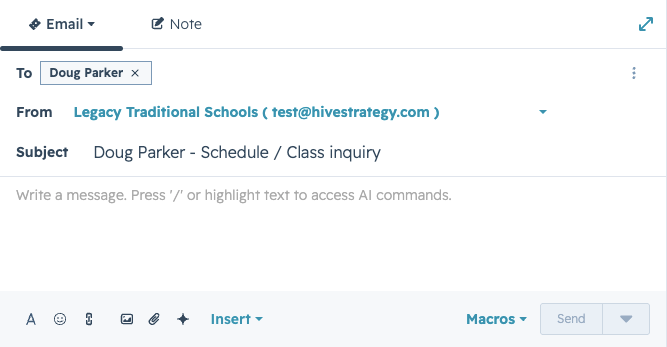
Sending Emails
Clicking  allows you to format text.
Clicking  allows you to insert a link.
Clicking  allows you to insert an attachment.
Clicking  allows you to use HubSpot’s AI tools.
The  button allows you to insert snippets, pre-set blocks of copy used to answer common questions.
And the  button will send the email to the guardian.
Responding via Phone or In Person
|
NOTE: If you choose to give the guardian a call or chat with them the next time you see them, it is essential to log a note documenting that conversation so we have a complete record of communication.
|
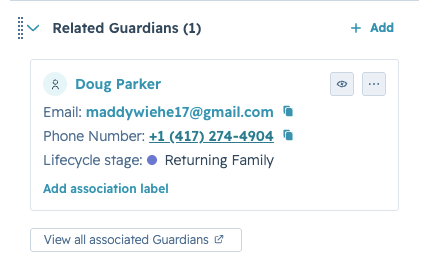
Scrolling down on the right hand side will show you the related guardian, where you can find the guardian's phone number:
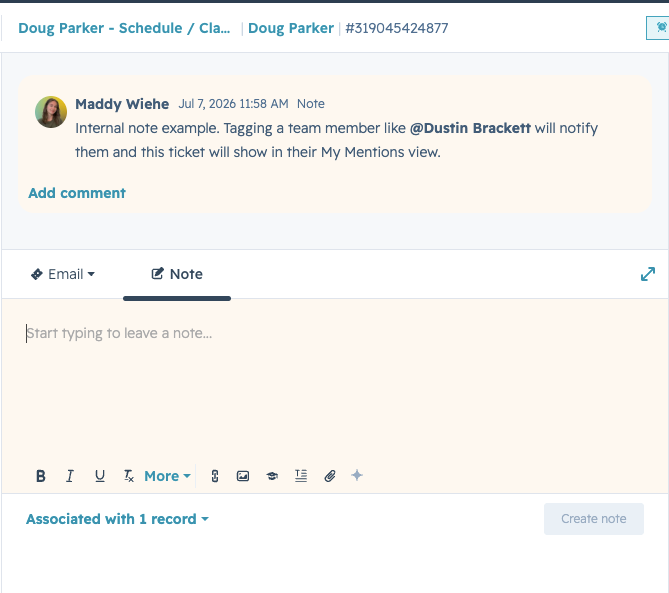
Leaving Notes
The Note tab in the response box will allow you to create an internal note.
If you type @ and a team member’s name, they will be notified and the ticket will show in their My Mentions view.
This note is not visible to guardians, only internally.