
See full document here.
Module 1: Why We're Changing the Inquiry Process
Background and Overview
This document is a companion to the LTS Registrar training course from HIVE Strategy. It covers how registrars will document, manage, and resolve guardian inquiries within HubSpot.
|
BEFORE YOU BEGIN
This training walks through the full inquiry resolution process, from receiving a new ticket to closing it out. Throughout this training, Doug Parker (guardian) and Debbie Parker (student) are used as fictional examples. Your DSO and admin team are available if you have questions beyond this guide. |
Training Modules at a Glance
|
# |
Module |
|---|---|
|
1 |
Why We're Changing the Inquiry Process |
|
2 |
How the Inquiry Process Works |
|
3 |
How Tickets Are Created |
|
4 |
Help Desk Overview |
|
5 |
Working Through Your Tickets |
|
6 |
Unique Situations |
|
7 |
Cheat Sheet, Support, and Resources |
|
OUR ULTIMATE GOAL Every change we're making rolls up to one goal: To better support families and make your daily work easier. This new system and process exists to give you the tools, information, and context you need to support the guardians and families you interact with every day. |
Here is how this system will allow us to reach that goal:
One place for context
The system gives you one spot to log a guardian's question and one spot for you and your team to find the context you need to respond and resolve it. That means less time searching for information, and guardians won't have to repeat themselves to multiple team members.
Automatic routing
The system automatically sends each question to the right team member. For example, if a guardian lets you know their student will miss a day of school, you'll log that note and it will automatically route to the registrar. You don't have to remember to pass it along, and the registrar won't need to dig through sticky notes or email to find context.
Nothing falls through the cracks
The system clearly shows which questions have been addressed and which still need follow-up, so we can be confident every guardian gets an answer.
Understanding trends
Logging every question, even ones you answer immediately, helps us see common questions guardians are asking. Over time, that data can point to opportunities for self-service resources, like a webpage answering frequently asked questions, saving your time for the questions that really need your attention.
Visibility into communication
If a guardian says "I never got an answer to this," your team will have documentation showing exactly when and how the question was addressed, helping avoid "he said, she said" situations.
Module 2: How the Inquiry Process Works
High Level Process Flow
At a high level, every inquiry is managed, recorded, and logged in HubSpot as a ticket, a digital record of the guardian's question.
Phone calls, voicemails, and in-person questions
You'll fill out a short form whenever a guardian calls or stops by in person. Submitting that form creates a ticket, which is sent to whoever needs to answer or resolve the inquiry.
Emails
An email to your campus's primary inbox automatically creates a ticket. You do not need to fill out a form for email inquiries.
|
KEY CONCEPT: WHAT IS A TICKET?
A ticket is the digital sticky note for a guardian's question. It's created either automatically (from an email) or by you (via the Family Support form for phone/in-person questions), and it's saved in HubSpot so questions never fall through the cracks. |
Once a ticket exists:
- It's sent to the appropriate team member - either you, the registrar, or an admin - depending on the category of the question.
- You'll respond and resolve the ticket entirely within HubSpot, where you can see historical notes, other team members' notes, and all related emails.
- Once you close the ticket, the question is resolved and we know the guardian’s question has been fully answered.
Module 3: How Tickets Are Created
What Happens When a Ticket Comes In
Regardless of how a guardian asks their question, a ticket is created and lives in the same place: your Help Desk.
From an email
When a guardian emails your campus's primary inbox, a ticket is automatically created with their original email attached. You can view this conversation in the center column of the ticket, just like an email inbox.
From a phone call, voicemail, or in-person visit
When a guardian calls, leaves a voicemail, or stops by in person, the secretary fills out the Family Support Card, which creates a ticket. These tickets won't have an original email in the center column — instead, look for the Ticket Description on the right-hand side. This is the note the secretary took capturing the guardian's question.
|
IMPORTANT
If you don't see an email in the center column, don't be concerned — check the Ticket Description field on the right-hand side. This will always tell you what question the guardian asked or what note you need to be aware of. |
Assignment
Regardless of how a ticket comes in, it will be automatically assigned to the appropriate team member based on the Category field.
Categories You Own:
- Attendance
- Withdrawal Request
- New Enrollment Request
Module 4: Help Desk Overview
Ticket and Help Desk Overview
This module will walk you through the help desk and provide an overview of important terminology.
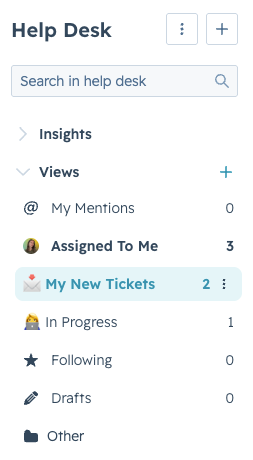
Ticket Views
Views are how tickets are sorted, and meant to help you quickly find tickets you need to be aware of.
Important Views
My New Tickets: Always start your day in this view. This will show you any new tickets that you need to address.
In Progress: These are tickets that you are still working through.
Honorable Mentions
Assigned to Me: Will show you all of the tickets that you own.
My Mentions: Will show you any ticket where another team member has tagged you in an internal note, regardless of who owns the ticket.
Following: Will show tickets that you have chosen to follow.
Drafts: Will show any ticket where you started to draft an email but have not sent it yet.
Your Inbox
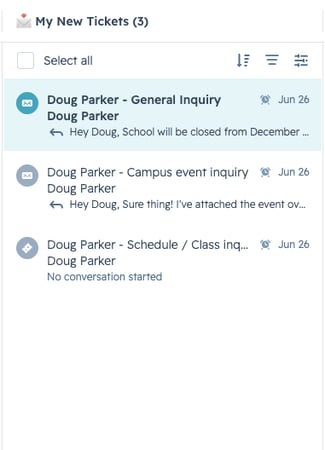
Your inbox shows a preview of the tickets within the view you’ve selected
Clock Icon
The clock icon indicates how soon a response is required to hit our SLA goals:
Grey: A response is due in more than an hour
Yellow: A response is due in less than an hour
Red: A response is overdue
Tickets with a yellow clock icon should be worked first, then move into the grey.
Center Column
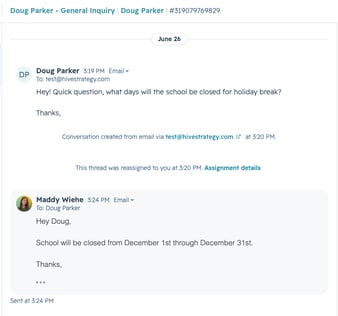
The center column shows the history of communication, including external emails and internal notes.
Email Tickets
For tickets created via email, the original email from the guardian will show as the first item in the center column.
Any subsequent emails, ticket updates, or internal notes will show in sequential order.
 Phone or In Person Tickets
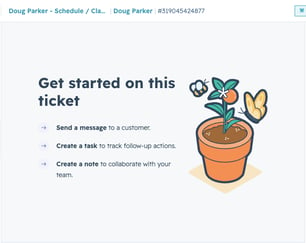
For tickets created through the family support card, the center column will initially be blank.
However, the ticket description can always be found on the right hand side.
Any subsequent emails, ticket updates, or internal notes will show in sequential order.
Response Box
The response box below the center column allows you to send emails to the guardian and log internal notes, which are not visible to the guardian.
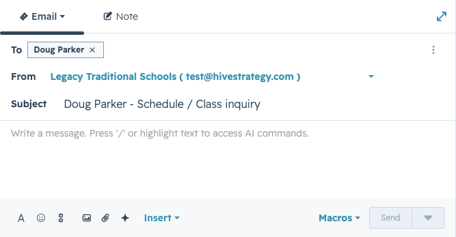
Sending Emails
Clicking  allows you to format text.
Clicking  allows you to insert a link.
Clicking  allows you to insert an attachment.
Clicking  allows you to use HubSpot’s AI tools.
The  button allows you to insert snippets, pre-set blocks of copy used to answer common questions.
And the  button will send the email to the guardian.
Leaving Notes
The Note tab in the response box will allow you to create an internal note.
If you type @ and a team member’s name, they will be notified and the ticket will show in their My Mentions view.
This note is not visible to guardians, only internally.
IMPORTANT: Always leave a note if you discuss something over the phone or in person, so the record of communication stays complete.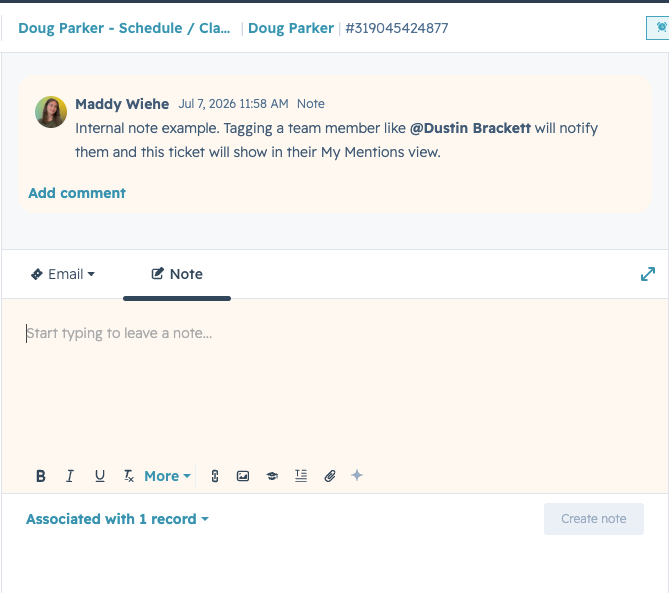
Right Hand Column
The right hand column will show all the contextual information you need around the inquiry.
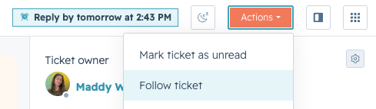 SLA Time
The highlighted text will show you when a response is due.
Following a Ticket
If you select Actions > Follow Ticket, the ticket will stay in your Following view and you will receive notifications around ticket updates.
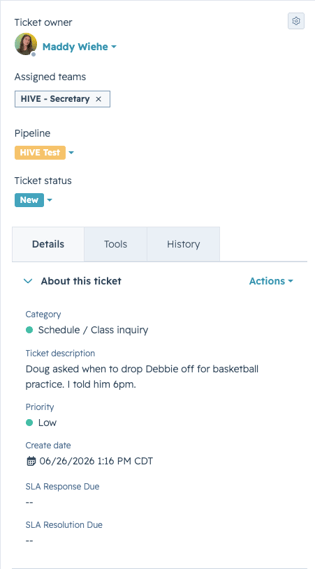 Ticket Owner
The ticket owner field shows who on the team is responsible for responding to and resolving the ticket.
Ticket Status
The ticket status property indicates which stage in the resolution process we are in.
Category
The category property powers the assignment (ticket owner) and the priority.
Ticket Description
The ticket description will always show the initial question that the guardian asked.
Priority
The priority indicates how urgent a response is needed to the guardian.
Ticket Summary
The ticket summary shows an AI generated overview, summarizing the history of a ticket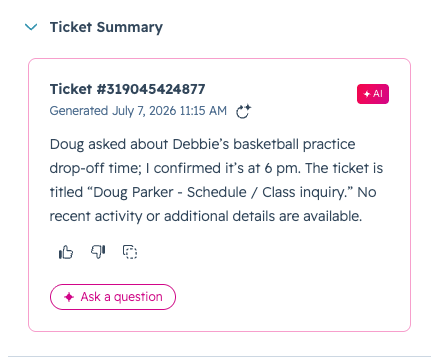
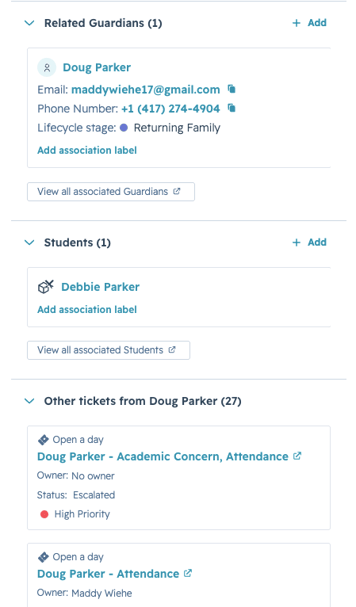
Related Guardians
The related guardians card shows which guardian initially asked this question.
Students
The students card shows which student this guardian is inquiring about.
Other Tickets
The other tickets card shows all other questions (tickets) this guardian has asked.
Module 5: Working Through Your Tickets
How to Work Through Your Tickets
This section will show you how to work through your tickets from New to Closed all within the help desk.
|
BEST PRACTICE
Check your Help Desk at least three times a day: once in the morning, once around lunch, and once before you leave for the day. |
Step 1: Check Your My New Tickets View
The My New Tickets view shows tickets that have not been reviewed or confirmed. We always want this view to have zero tickets in it.
If a ticket shows in this view, there are two steps to move the ticket to in progress:
- Confirm the ticket’s category
- Shift the ticket status to In Progress
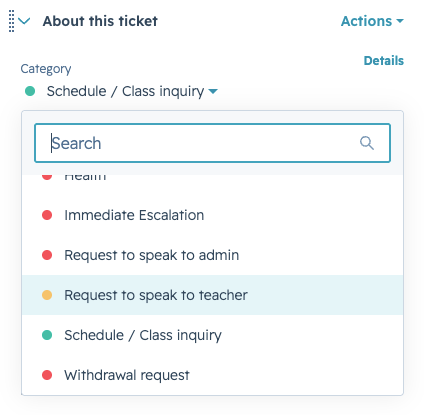
1. Confirming the Ticket Category
It is essential that the ticket category is correct, as this indicates who should own the ticket and what the priority ought to be.
Usually the category will be correct, but if it is not, all you will need to do is select the dropdown and update to the correct category:
|
IMPORTANT
If a ticket is incorrectly assigned to you, do not update the ticket owner field.
Only update the category field, and the ticket owner will automatically route to the correct person. |
Step 2: Responding to the Guardian or Escalating the Ticket
Once a ticket is in progress, you will respond to the guardian either via email or over the phone.
Responding via Email
To respond via email, you will use the response box in the center column to draft and send your email. This will automatically be logged to the ticket.
Responding via Phone or In Person
If you choose to give the guardian a call or chat with them the next time you see them, it is essential to log a note documenting that conversation so we have a complete record of communication.
Escalating the Ticket
In the event that the ticket needs to be sent to an admin or DSO, you can escalate the ticket which will automatically notify them that a ticket needs their attention.
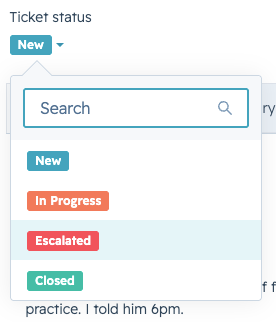
There are two steps to escalate a ticket:
- First, leave a note communicating to the admin or DSO why you are escalating the ticket.
- Then, select Ticket Status and click Escalated:
|
NOTE:
If a ticket isn't responded to or closed within the SLA timeframe, it will automatically shift to Escalated.
Once a ticket is shifted to Escalated, it will be removed from your view and will be sent to the admins or DSOs.
When that happens, the admin or DSO will pick up the ticket as they are available and will take over ownership of the ticket.
This means that it is no longer your responsibility to respond to and resolve the ticket and you can move into the next ticket on your plate. |
Step 3: Closing the Ticket
After you have fully reached a resolution with the guardian, you will close the ticket out. This indicates that the guardian’s question has been answered or their need has been resolved.
To close a ticket, select Ticket Status and click Closed:
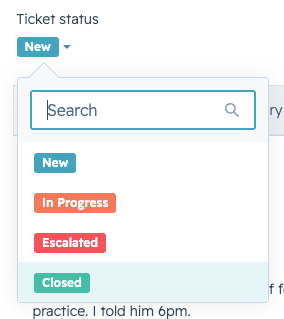
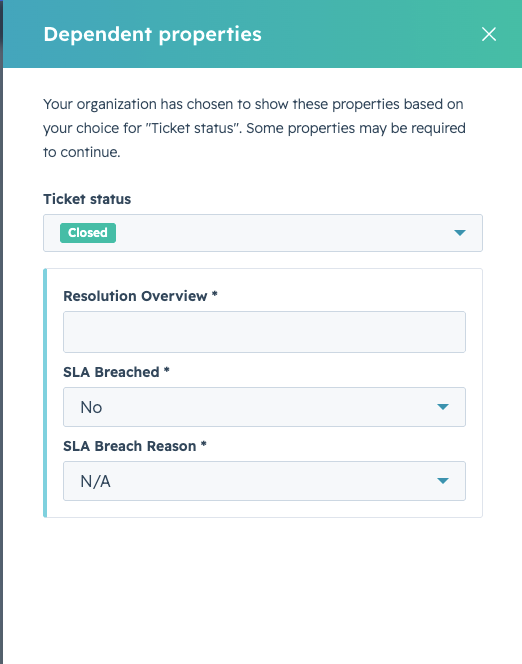
When you close a ticket, you will be prompted to fill the Resolution Overview property with a high level overview of how the guardian’s question or need was resolved:
|
NOTE:
This field is very important because it will allow us to reference back to closed tickets and understand how we answered a guardian’s question or resolved their need.
This will allow us to push back on he said - she said instances, and will help to remind guardians what was discussed if they ask again about something that you’ve already discussed. |
Once a ticket is closed, we know the guardian’s needs were addressed and you can move into the next ticket in your In Progress view.
Module 6: Unique Situations
How to Handle Unique Situations
If a Ticket is Assigned to You Incorrectly
Ticket ownership is driven entirely by the Category field. If a ticket lands in your queue but doesn't belong there — for example, a homework complaint miscategorized as a Withdrawal Request — update the Category. HubSpot will automatically reassign it to the correct owner.
|
IMPORTANT
Never manually change the Ticket Owner field. Updating the Category is the only correct way to reroute a ticket. |
If You're Interrupted Mid-Email
Your draft is saved automatically. If you're pulled away, you can find your unfinished reply again by reopening the ticket in your In Progress view, or by checking the Drafts view.
If You Escalate a Ticket but Want to Stay in the Loop
Before selecting Escalated, go to Actions and select Follow Ticket. Escalating will unassign you and remove the ticket from your New or In Progress views, but because you're following it, it will still show in your Following view and you'll continue to receive notifications about updates.
If a Ticket Isn't Resolved Within the Expected Timeframe
If a ticket isn't responded to or closed within the SLA timeframe, it automatically escalates to the admin/DSO team. It will be removed from your views, and you're no longer responsible for it.
|
NOTE
These timeframes are our initial anticipation only. Your team will not be evaluated or measured against them.
The purpose of these SLAs are to help us understand how long the process typically takes and to ensure a question receives a response in the instance that you are out of office or in a long meeting. |
Module 7: Cheat Sheet, Support, and Resources
Your Cheat Sheet and Support Options
As a Registrar, you will be responsible for:
- Checking your Help Desk at least 3 times a day.
- First, check the New view. For any tickets showing, confirm the category and and update the Ticket Status to In Progress.
- Then, check the In Progress view and work through these tickets by responding, closing, or escalating.
- Filling out the Family Support Card on the Guardian record when a new phone call, voicemail, or in person inquiry comes in throughout the day
How to Get Support:
- Start here: Check the LTS resource landing page for a step-by-step overview of the process.
- HubSpot Knowledge Base: Search HubSpot's knowledge base for additional guidance.
- Reach out to your campus admin or DSO. They're well trained on the platform and ready to help.
Quick Reference: Key Tips
- Every guardian interaction becomes a ticket: phone and in-person via the Family Support Card, email automatically.
- The Category field drives ticket ownership. Never manually change the ticket owner.
- Always log how a question was resolved, even if you answered it immediately.
- Move tickets from New to In Progress as soon as you begin working them.
- Internal notes are never visible to guardians. Use them freely, and tag colleagues with @.
- Escalate Immediately sends a ticket straight to admin/DSO, regardless of category.
- Interrupted mid-email? Your draft is saved automatically in the Drafts view.
- SLA timeframes are for planning purposes only. Your team is not evaluated against them.