
Once you've reached a resolution with the guardian, you will need to close the ticket. This indicates that we have fully answered the guardian’s question or addressed the guardian’s need and no further action is needed.
Closing a Ticket
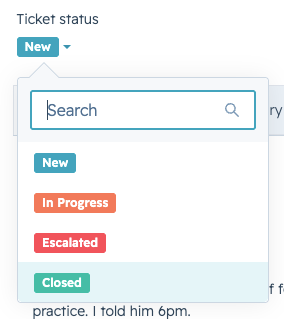
Select the Ticket Status dropdown on the right hand side and click Closed.
Once you select closed, a form will appear on the right hand side with a few fields that are required to fill before the ticket can be closed.
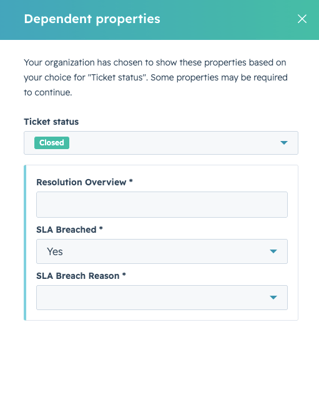
Resolution Overview
Document how the question was resolved and what the outcome was.
This lets anyone reference back to a closed ticket without digging through notes and emails, and it helps us push back on any "he said, she said" situations.
SLA Breached & SLA Breached Reason
If you or the original owner were unable to respond to or resolve the ticket within our SLA timeframes, the SLA Breached property will say Yes and you will need to document the reason why we were unable to meet the SLA expectations.
|
REMINDER These timeframes are our initial anticipation only. Your team will not be evaluated or measured against them. The purpose of these SLAs are to help us understand how long the process typically takes and to ensure a question receives a response in the instance that you are out of office or in a long meeting. |
SLA Breached & SLA Breach Reason
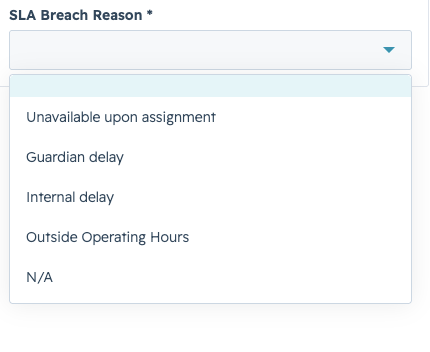
By default, SLA Breached is set to No and SLA Breach Reason is N/A.
If the ticket goes over its expected response or close time, SLA Breached will switch to Yes, and you'll need to select a reason from the dropdown provided.
|
IMPORTANT If none of the listed reasons fit, select N/A and add the actual reason directly in the Resolution Overview. That way we still have a record of why the ticket was breached, and we can continue adding new reasons to the dropdown as needed. |